
TL;DR: WooCommerce includes a built-in Local Pickup shipping method you can enable per shipping zone in minutes. For multiple locations, appointment slots, or curbside workflows, third-party plugins fill the gap. The right setup depends on whether you use the classic checkout or the WooCommerce Checkout Block.
Local Pickup Ecommerce WooCommerce setups have become a real revenue driver for stores that serve nearby customers without eating shipping costs. This guide covers every layer, from enabling the core method in shipping zones to adding time slots and curbside features, so you can choose the approach that fits your operation today.
How Local Pickup Ecommerce WooCommerce Works Out of the Box
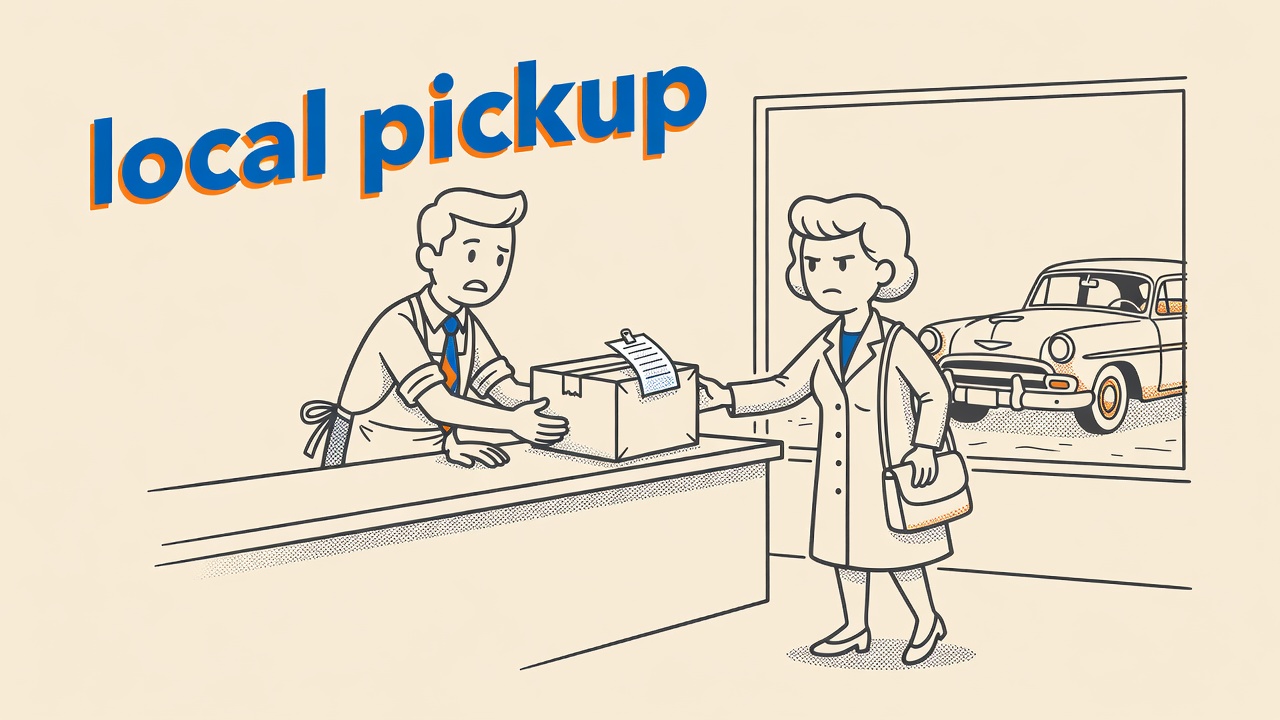
WooCommerce includes a core Local Pickup shipping method that lets customers collect their orders instead of having them shipped, per the WooCommerce Local Pickup documentation. You configure it inside shipping zones, the same place you manage flat-rate and free-shipping rules. No extra plugin is required for the basic version.
To enable it, go to WooCommerce > Settings > Shipping and open the zone covering your store location. Click “Add shipping method,” choose Local Pickup, and save. From there, edit the method to assign a custom display name such as “In-Store Pickup” or “Curbside Pickup,” set an optional cost, and choose a tax status for that cost. That display name is exactly what customers see at checkout.
One thing to watch: if you have a “Rest of the World” catch-all zone, Local Pickup will appear there too unless you deliberately leave it out. Most stores want pickup available only to local buyers, so add the method only to zones that match your physical area and remove it from the catch-all zone entirely.
WooCommerce Local Pickup and the Checkout Block
If your store uses the WooCommerce Checkout Block rather than the classic shortcode checkout, local pickup behaves differently. The WooCommerce Blocks documentation describes a separate Local Pickup panel inside WooCommerce > Settings > Shipping that controls the Blocks-based pickup experience. This is not the same toggle as the shipping-zone method.
In the Blocks flow, you enable local pickup from that dedicated panel and then add at least one pickup location, including an address and optional pickup details. The method will not appear at checkout until at least one location is configured. Customers then see a location selector during the checkout process, which is a noticeably cleaner experience than the classic dropdown.
The Blocks-based pickup and the classic zone-based method are independent of each other. If your theme uses both checkout types or you are mid-migration, configure both properly. Otherwise some customers may see pickup as an option and others may not, creating inconsistent behavior that is difficult to troubleshoot.
Core Local Pickup vs. WooCommerce Local Pickup Plus
The core method works well for a single location with straightforward needs. WooCommerce Local Pickup Plus is a paid extension that goes further. Per the Local Pickup Plus documentation, it supports multiple named pickup locations managed under WooCommerce > Settings > Shipping > Pickup Locations, item-level eligibility rules that allow or block specific products from pickup, customer appointment scheduling, and geocoded location sorting that ranks locations by distance from the customer.
That distance sorting matters when you run two or three physical stores and want the nearest location to rise to the top for each shopper. The core method has no such logic. It just shows the method name and the cost you configured.
Item eligibility rules are another real differentiator. If you sell both lightweight accessories and oversized furniture, you may want pickup available only for certain product categories or weight ranges. Local Pickup Plus lets you set those rules per product or category. The right Local Pickup Ecommerce WooCommerce configuration depends heavily on whether you need that kind of product-level control.
Adding Multiple Pickup Locations in WooCommerce
Multiple pickup locations is one of the most common requests from store owners with more than one physical site. The best approach depends on which tool you use.
With the WooCommerce Checkout Block’s built-in pickup panel, you can add several locations directly. Each one gets a name, address, and pickup details text. Customers choose from the list at checkout. This handles two to four locations comfortably without any extra plugin or paid extension.
With Local Pickup Plus, the location manager is more capable. It supports a larger number of locations, provides geocoding so customers see their nearest option first, and allows per-location product eligibility rules. For stores operating five or more pickup points, or those needing tight control over which products are available at each site, Local Pickup Plus is the cleaner long-term solution.
Restricting Pickup by Area and Charging a Fee
The most reliable way to restrict Local Pickup Ecommerce WooCommerce to a specific geographic area is to use shipping zones deliberately. Create a zone that covers only the cities, states, or ZIP codes near your physical location. Add Local Pickup to that zone only. Leave it out of every other zone, including the “Rest of the World” fallback.
This is a zone-level restriction, not a customer-address validation. A customer whose ZIP code falls outside your defined zone simply will not see Local Pickup as a checkout option. That logic is built into WooCommerce shipping zones and requires no extra plugin for basic geographic gating.
Charging a fee for pickup is optional but fully supported. Inside the shipping zone editor, the Local Pickup method has a “Cost” field. Enter any amount and the fee appears as a line item at checkout. The tax status setting lets you decide whether that fee is taxable. A pickup fee can make sense if your curbside or scheduled appointment service carries a real operational cost.
Worth Knowing: Renaming the Local Pickup method to “Curbside Pickup” in the shipping method settings costs nothing and updates the label across the checkout page, order confirmation email, and order details screen. Pair it with a custom pickup instruction added to the order confirmation email template to tell customers exactly where to pull up. You get a polished curbside experience without buying a single plugin.
Time Slots, Curbside Features, and Local Pickup Ecommerce WooCommerce Plugins
The core WooCommerce method does not include time-slot scheduling. Customers collect orders during store hours with no booking step required. For appointment-based or slot-based pickup, a plugin is necessary.
Local Pickup Time is a free plugin listed on WordPress.org and maintained on GitHub. It adds a time picker to the checkout page so customers choose a specific pickup window. Store owners configure available hours and a minimum lead time between order placement and the earliest slot. The plugin integrates with the classic shortcode checkout.
Zorem Local Pickup for WooCommerce is a second option on WordPress.org. It combines time-slot scheduling with dedicated pickup order statuses such as “Ready for Pickup” and “Picked Up,” plus pickup instructions that appear in order confirmation emails. Stores processing a steady volume of local orders benefit from those custom statuses because staff can filter the WooCommerce order list by pickup stage without scanning every order manually.
When evaluating any pickup plugin, verify compatibility with your checkout type before installing. Some plugins support only the classic shortcode checkout, not the Blocks-based experience. The plugin listing on WordPress.org and the plugin’s own documentation will state supported WooCommerce versions and checkout compatibility. Always test on a staging site before going live on production.
For stores that need a parcel-locker or carrier pickup-point selector, separate carrier-specific plugins handle that use case. Those are distinct from in-store or curbside pickup and typically require a carrier account and API credentials.
The WooCommerce Local Pickup documentation and the WooCommerce Blocks documentation are the most reliable primary references for tracking changes as WooCommerce continues to evolve its checkout architecture.
Quick Takeaways
- WooCommerce core Local Pickup is free, configured per shipping zone, and supports a custom display label, optional fee, and tax status setting.
- The WooCommerce Checkout Block uses its own separate Local Pickup panel; you must add at least one pickup location there before the option appears at checkout.
- Local Pickup Plus adds multiple locations, geocoded distance sorting, item eligibility rules, and appointment scheduling features that the core method does not offer.
- Restrict pickup geographically by adding the Local Pickup method only to zones that match your physical area and excluding it from the “Rest of the World” catch-all zone.
- Free plugins like Local Pickup Time and Zorem Local Pickup extend the core method with time slots, curbside labels, and dedicated pickup order statuses.
Frequently Asked Questions
- How do I enable WooCommerce local pickup in shipping zones?
- Go to WooCommerce > Settings > Shipping, open the zone covering your store location, click “Add shipping method,” and select Local Pickup. Save the zone, then edit the method to set a display name, optional cost, and tax status. Remove Local Pickup from any catch-all zone so the option does not appear to customers located far from your pickup site.
- What is the difference between WooCommerce core Local Pickup and Local Pickup Plus?
- The core method is free and provides one pickup option per shipping zone with an optional fee and custom label. Local Pickup Plus is a paid extension that supports multiple named pickup locations, item-level eligibility rules, geocoded distance sorting, and customer appointment scheduling. The right choice depends on how many pickup sites you operate and whether you need per-product pickup control.
- Does WooCommerce local pickup work with the Checkout Block?
- Yes, but the Blocks-based experience uses a dedicated Local Pickup panel under WooCommerce > Settings > Shipping rather than the standard shipping zone method. You must enable local pickup in that panel and add at least one pickup location with an address before the option shows at checkout. The Blocks flow presents customers with a location selector during the checkout process.
- How do I add pickup time slots to WooCommerce local pickup orders?
- The core WooCommerce local pickup method does not include time-slot scheduling, so you need a plugin to add that feature. Local Pickup Time, available free on WordPress.org, adds a time picker to the checkout page and lets store owners configure available hours and a minimum lead time. Zorem Local Pickup is a second option that combines time-slot scheduling with dedicated pickup order statuses and email instructions.
- Which WooCommerce plugins add curbside pickup features?
- Zorem Local Pickup for WooCommerce adds curbside-oriented features including “Ready for Pickup” and “Picked Up” order statuses, scheduled pickup windows, and pickup instructions in order emails. You can also rename the core Local Pickup shipping method to “Curbside Pickup” directly in the zone settings at no cost, which updates the label across the checkout page and order confirmation email without any additional plugin.